Settings
 Fast Delivery
 Incoterms
 Payment Types


 Marketplace Product

Mfr Part # 4116
PYPORTAL - CIRCUITPYTHON POWERED
Adafruit Industries LLC

License: See Original Project 3D Printing Acceleration Gyroscope LCD / TFT Magnetic STEMMA
Guide by Ruiz Brothers
Turn your PyPortal into an IoT-connected art gallery that cycles through art, space, cats and dogs! Pull from image feeds or images from an SD card. Skip images with a tilt or shake.
The melted art frame is inspired by artist nikiarrt's work on paintings that melt into the frame.
Tap the screen to change feeds. Customize your feed, transition animations, and even the audio chirp feedback! 3D print the melted diagonal frame to mount the PyPortal and accelerometer.
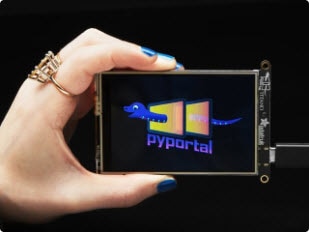
Say hello to PyPortal! The easiest way to build your IoT projects with a touchscreen display! Make sure to walk through the PyPortal introduction guide and walkthrough the pages. It'll get you setup with Circuit Python and a handful of demo code to play with!
Adafruit PyPortal - IoT for CircuitPython
By Kattni Rembor
Fully Reversible Pink/Purple USB A to micro B Cable - 1m long
Official Raspberry Pi A2-Class microSD Card - 64GB Blank
2 x M3x6mm Screws
2 x M3x10mm screws
2 x M2.5x6mm screws
This provides a visual reference for wiring of the components. They aren't true to scale, just meant to be used as reference. This diagram was created using Fritzing software.
You must change the jumper on the pads labeled "5V3" to the left of the connector. Cut the trace between "5" and "V" and bridge the "3" and "V" pads. See the pictures and text below. The SAMD51 does not like it if there are even light pullups to 5V and may hang on boot otherwise!
CircuitPython is a derivative of MicroPython designed to simplify experimentation and education on low-cost microcontrollers. It makes it easier than ever to get prototyping by requiring no upfront desktop software downloads. Simply copy and edit files on the CIRCUITPY "flash" drive to iterate.
The following instructions will show you how to install CircuitPython. If you've already installed CircuitPython but are looking to update it or reinstall it, the same steps work for that as well!
Follow this quick step-by-step for super-fast Python power :)
Download the latest version of CircuitPython for the PyPortal via CircuitPython.org
Download the latest version of CircuitPython for the PyPortal Pynt via CircuitPython.org
Click the link above to download the latest version of CircuitPython for the PyPortal.
Download and save it to your desktop (or wherever is handy).
Plug your PyPortal into your computer using a known-good USB cable.
A lot of people end up using charge-only USB cables and it is very frustrating! So make sure you have a USB cable you know is good for data sync.
Double-click the Reset button on the top in the middle (magenta arrow) on your board, and you will see the NeoPixel RGB LED (green arrow) turn green. If it turns red, check the USB cable, try another USB port, etc. Note: The little red LED next to the USB connector will pulse red. That's ok!
If double-clicking doesn't work the first time, try again. Sometimes it can take a few tries to get the rhythm right!
You will see a new disk drive appear called PORTALBOOT.
Drag the adafruit-circuitpython-pyportal-<whatever>.uf2 file to PORTALBOOT.
The LED will flash. Then, the PORTALBOOT drive will disappear, and a new disk drive called CIRCUITPY will appear.
If you haven't added any code to your board, the only file that will be present is boot_out.txt. This is absolutely normal! It's time for you to add your code.py and get started!
That's it, you're done! :)
Click below to download a zip of the files that shipped on the PyPortal or PyPortal Pynt.
CircuitPython works with WiFi-capable boards to enable you to make projects that have network connectivity. This means working with various passwords and API keys. As of CircuitPython 8, there is support for a settings.toml file. This is a file that is stored on your CIRCUITPY drive, that contains all of your secret network information, such as your SSID, SSID password and any API keys for IoT services. It is designed to separate your sensitive information from your code.py file so you are able to share your code without sharing your credentials.
CircuitPython previously used a secrets.py file for this purpose. The settings.toml file is quite similar.
Your settings.toml file should be stored in the main directory of your CIRCUITPY drive. It should not be in a folder.
This section will provide a couple of examples of what your settings.toml file should look like, specifically for CircuitPython WiFi projects in general.
The most minimal settings.toml file must contain your WiFi SSID and password, as that is the minimum required to connect to WiFi. Copy this example, paste it into your settings.toml, and update:
your_wifi_ssid
your_wifi_password
CIRCUITPY_WIFI_SSID = "your_wifi_ssid"
CIRCUITPY_WIFI_PASSWORD = "your_wifi_password"
Many CircuitPython network-connected projects on the Adafruit Learn System involve using Adafruit IO. For these projects, you must also include your Adafruit IO username and key. Copy the following example, paste it into your settings.toml file, and update:
your_wifi_ssid
your_wifi_password
your_aio_username
your_aio_key
CIRCUITPY_WIFI_SSID = "your_wifi_ssid"
CIRCUITPY_WIFI_PASSWORD = "your_wifi_password"
ADAFRUIT_AIO_USERNAME = "your_aio_username"
ADAFRUIT_AIO_KEY = "your_aio_key"
Some projects use different variable names for the entries in the settings.toml file. For example, a project might use ADAFRUIT_AIO_ID in the place of ADAFRUIT_AIO_USERNAME. If you run into connectivity issues, one of the first things to check is that the names in the settings.toml file match the names in the code.
Not every project uses the same variable name for each entry in the settings.toml file! Always verify it matches the code.
Here is an example settings.toml file.
# Comments are supported
CIRCUITPY_WIFI_SSID = "guest wifi"
CIRCUITPY_WIFI_PASSWORD = "guessable"
CIRCUITPY_WEB_API_PORT = 80
CIRCUITPY_WEB_API_PASSWORD = "passw0rd"
test_variable = "this is a test"
thumbs_up = "\U0001f44d"
In a settings.toml file, it's important to keep these factors in mind:
Strings are wrapped in double quotes; ex: "your-string-here"
Integers are not quoted and may be written in decimal with optional sign (+1, -1, 1000) or hexadecimal (0xabcd).
Floats (decimal numbers), octal (0o567) and binary (0b11011) are not supported.
Use \u escapes for weird characters, \x and \ooo escapes are not available in .toml files
Example: \U0001f44d for 👍 (thumbs up emoji) and \u20ac for € (EUR sign)
Unicode emoji, and non-ASCII characters, stand for themselves as long as you're careful to save in "UTF-8 without BOM" format
When your settings.toml file is ready, you can save it in your text editor with the .toml extension.
In your code.py file, you'll need to import the os library to access the settings.toml file. Your settings are accessed with the os.getenv() function. You'll pass your settings entry to the function to import it into the code.py file.
import os

print(os.getenv("test_variable"))
In the upcoming CircuitPython WiFi examples, you'll see how the settings.toml file is used for connecting to your SSID and accessing your API keys.
Once you've finished setting up your PyPortal with CircuitPython, you can access the code and necessary libraries by downloading the Project Bundle.
To do this, click on the Download Project Bundle button in the window below. It will download to your computer as a zipped folder.
# SPDX-FileCopyrightText: 2025 Pedro Ruiz for Adafruit Industries
#
# SPDX-License-Identifier: MIT
'''PyPortal Art Display - Multi-feed with mode switching'''
# pylint: disable=too-many-lines
from os import getenv
import os
import gc
import math
import time
import random
import supervisor
import board
import displayio # pylint: disable=unused-import
import digitalio
from adafruit_pyportal import PyPortal
from adafruit_display_text import label
import terminalio
import adafruit_lis3dh
# ============================================
# FEED MODES - tap screen to cycle through
# Reorder or comment out to customize rotation
# ============================================
FEED_MODES = [
"cma",
"nasa",
"cats",
"dogs",
"local",
]
# Starting mode (must be in FEED_MODES)
START_MODE = "cma"
# --- Cleveland Museum of Art settings ---
# No API key needed! CC0 open access with guaranteed images
CMA_API_URL = (
"https://openaccess-api.clevelandart.org"
"/api/artworks/"
)
CMA_IMAGE_COUNT = 37000 # CC0 works with images
CMA_DISPLAY_TIME = 60 # seconds between images
# --- NASA APOD settings ---
# Get a free key at https://api.nasa.gov
# Add NASA_API_KEY to your settings.toml
# DEMO_KEY works but is rate-limited (30/hr)
NASA_API_KEY = getenv("NASA_API_KEY") or "DEMO_KEY"
NASA_API_URL = (
"https://api.nasa.gov/planetary/apod"
)
NASA_START_YEAR = 1995
NASA_END_YEAR = 2025
NASA_DISPLAY_TIME = 60 # seconds between images
# --- Cat API settings ---
# No API key needed
CAT_API_URL = (
"https://api.thecatapi.com/v1/images/search"
)
CAT_DISPLAY_TIME = 60 # seconds between images
# --- Dog API settings ---
# No API key needed
DOG_API_URL = (
"https://dog.ceo/api/breeds/image/random"
)
DOG_DISPLAY_TIME = 60 # seconds between images
# --- Local SD card settings ---
# Place BMP images in /sd/imgs/
LOCAL_IMG_PATH = "/sd/imgs"
LOCAL_DISPLAY_TIME = 60 # seconds between images
# ============================================
# DISPLAY & HARDWARE SETUP
# ============================================
WIDTH = board.DISPLAY.width
HEIGHT = board.DISPLAY.height
board.DISPLAY.rotation = 0
WIDTH = board.DISPLAY.width
HEIGHT = board.DISPLAY.height
# Skip button on D3 (pull-up, active low)
# Set to False if no button is wired to D3
USE_BUTTON = False
skip_btn = None # pylint: disable=invalid-name
if USE_BUTTON:
skip_btn = digitalio.DigitalInOut(board.D3)
skip_btn.direction = digitalio.Direction.INPUT
skip_btn.pull = digitalio.Pull.UP
# --- LIS3DH Accelerometer (STEMMA I2C) ---
# Set to False if no accelerometer is connected
USE_ACCEL = True
lis3dh = None # pylint: disable=invalid-name
# Tilt detection: LIS3DH on back of diamond-oriented display.
# Resting position reads ~-10 to -16 degrees on Z-axis.
# Tilt left (-8 to -2) or right (-31 to -19) = skip.
TILT_TARGET_LEFT = -1.5 # center of left zone (0 to -3)
TILT_TARGET_RIGHT = -60 # center of right zone (-50 to -70)
TILT_THRESHOLD_LEFT = 6 # +/- tolerance (range: 0 to -3)
TILT_THRESHOLD_RIGHT = 30 # +/- tolerance (range: -50 to -70)
TILT_HOLD_TIME = 0.5 # seconds to hold at target before skip
tilt_start = 0.0 # pylint: disable=invalid-name
# Shake detection: triggers skip on quick shake gesture
SHAKE_THRESHOLD = 20.0 # m/s^2 total accel (1g = 9.8)
SHAKE_COUNT_NEEDED = 2 # spikes needed within window
SHAKE_WINDOW = 0.5 # seconds to collect spikes
shake_times = [] # timestamps of detected spikes
if USE_ACCEL:
try:
i2c = board.I2C()
lis3dh = adafruit_lis3dh.LIS3DH_I2C(i2c)
lis3dh.range = adafruit_lis3dh.RANGE_2_G
print("LIS3DH accelerometer found!")
except (ValueError, RuntimeError) as accel_err:
print("No LIS3DH found:", accel_err)
lis3dh = None # pylint: disable=invalid-name
USE_ACCEL = False
# --- Audio confirmation chirp ---
BEEP_FREQ_START = 843 # chirp start frequency Hz
BEEP_FREQ_END = 1200 # chirp end frequency Hz
BEEP_DURATION = 0.2 # seconds (short chirp)
BEEP_WAV = "/sd/beep.wav"
def play_beep():
'''Play confirmation chirp via PyPortal's built-in audio.'''
try:
pyportal.play_file(BEEP_WAV)
except (OSError, RuntimeError) as beep_err:
print("Beep error:", beep_err)
def get_tilt_angle():
'''Get Z-axis tilt angle in degrees.
Returns ~-45 at rest on stand, ~0 when upright.'''
if not lis3dh:
return None
_, accel_y, accel_z = lis3dh.acceleration
angle = math.degrees(math.atan2(accel_z, accel_y))
return angle
def check_tilt_skip():
'''Check if display is tilted left or right long enough.
Returns True if held in either zone for TILT_HOLD_TIME.'''
global tilt_start # pylint: disable=global-statement,invalid-name
if not USE_ACCEL:
return False
angle = get_tilt_angle()
if angle is None:
return False
in_left = abs(angle - TILT_TARGET_LEFT) < TILT_THRESHOLD_LEFT
in_right = abs(angle - TILT_TARGET_RIGHT) < TILT_THRESHOLD_RIGHT
if in_left or in_right:
if tilt_start == 0.0:
tilt_start = time.monotonic()
direction = "left" if in_left else "right"
print("Tilt: %s detected (%.0f deg)" % (
direction, angle))
else:
elapsed = time.monotonic() - tilt_start
remaining = TILT_HOLD_TIME - elapsed
if remaining > 0:
status_text.text = "Skip: %.1fs" % remaining
if elapsed >= TILT_HOLD_TIME:
print("Tilt: held %.1fs - skip!" % TILT_HOLD_TIME)
status_text.text = ""
play_beep()
tilt_start = 0.0
return True
else:
if tilt_start != 0.0:
tilt_start = 0.0
status_text.text = ""
return False
def check_shake():
'''Detect shake gesture from acceleration spikes.
Returns True if enough spikes within time window.'''
global shake_times # pylint: disable=global-statement,invalid-name
if not USE_ACCEL:
return False
accel_x, accel_y, accel_z = lis3dh.acceleration
magnitude = math.sqrt(
accel_x * accel_x
+ accel_y * accel_y
+ accel_z * accel_z
)
now = time.monotonic()
if magnitude > SHAKE_THRESHOLD:
shake_times.append(now)
# Prune old spikes outside window
shake_times = [t for t in shake_times
if now - t < SHAKE_WINDOW]
if len(shake_times) >= SHAKE_COUNT_NEEDED:
print("Shake detected! (%.1f m/s^2)" % magnitude)
shake_times = []
play_beep()
return True
return False
# Minimum pressure for a real tap (filters ghost touches from SPI noise)
TAP_PRESSURE = 40000
def check_tap():
'''Check for a confirmed screen tap.
Requires minimum pressure and a second read to filter ghosts.'''
touch = pyportal.touchscreen.touch_point
if touch and touch[2] > TAP_PRESSURE:
time.sleep(0.05) # brief pause
confirm = pyportal.touchscreen.touch_point
if confirm and confirm[2] > TAP_PRESSURE:
return True
return False
def tap_aware_sleep(seconds):
'''Sleep for given seconds but check for taps every 0.2s.
Returns True if tapped, False if completed.'''
end_time = time.monotonic() + seconds
while time.monotonic() < end_time:
if check_tap():
return True
time.sleep(0.2)
return False
TAP_WINDOW = 0.8 # seconds to wait for additional taps
def count_taps():
'''Count total taps within TAP_WINDOW after first tap.
Returns tap count (1 if no extra taps detected).'''
tap_count = 1
deadline = time.monotonic() + TAP_WINDOW
while time.monotonic() < deadline:
if check_tap():
tap_count = tap_count + 1
# Reset window on each tap
deadline = time.monotonic() + TAP_WINDOW
time.sleep(0.1)
return tap_count
# ============================================
# DIAGONAL SLIDE TRANSITION
# ============================================
WIPE_STEPS = 8 # number of animation frames
WIPE_DELAY = 0.02 # seconds between frames
# Drip bias: 0.0=pure vertical, 1.0=equal diagonal
WIPE_X_BIAS = 1 # equal diagonal
def wipe_transition(bg_path):
'''Diagonal slide transition - paint drip style.
New image slides over old from top-left corner.
Both images visible during transition, no black.
Ease-in curve accelerates like gravity on paint.
Vertical bias makes it feel like dripping down.'''
gc.collect()
try:
new_bmp = displayio.OnDiskBitmap(bg_path)
new_tile = displayio.TileGrid(
new_bmp, pixel_shader=new_bmp.pixel_shader
)
except MemoryError:
print("Wipe: low memory, direct swap")
pyportal.set_background(bg_path)
return
# Start off-screen: mostly above, slightly left
new_tile.x = int(-WIDTH * WIPE_X_BIAS)
new_tile.y = -HEIGHT
board.DISPLAY.auto_refresh = False
try:
pyportal.root_group.remove(text_area)
except ValueError:
pass
try:
pyportal.root_group.remove(status_text)
except ValueError:
pass
# New image on top of old background
pyportal.root_group.append(new_tile)
pyportal.root_group.append(text_area)
pyportal.root_group.append(status_text)
board.DISPLAY.auto_refresh = True
# Animate with ease-in (accelerates like dripping)
for step in range(1, WIPE_STEPS + 1):
frac = step / WIPE_STEPS
progress = frac * frac # ease-in: slow start, fast finish
new_x = int(-WIDTH * WIPE_X_BIAS * (1.0 - progress))
new_y = int(-HEIGHT * (1.0 - progress))
new_tile.x = new_x
new_tile.y = new_y
time.sleep(WIPE_DELAY)
# Snap to final position
new_tile.x = 0
new_tile.y = 0
# Cleanup: remove old layers below new_tile
# (avoids pyportal.set_background which forces a refresh)
board.DISPLAY.auto_refresh = False
while (len(pyportal.root_group) > 0
and pyportal.root_group[0] != new_tile):
pyportal.root_group.pop(0)
board.DISPLAY.auto_refresh = True
gc.collect()
def url_encode(url_string):
'''Simple URL encoding for image URLs.'''
encoded = ""
for char in url_string:
if char == " ":
encoded += "%20"
elif char == '"':
encoded += "%22"
elif char == "'":
encoded += "%27"
elif char == "#":
encoded += "%23"
elif char == "?":
encoded += "%3F"
elif char == "&":
encoded += "%26"
else:
encoded += char
return encoded
# Adafruit IO image converter credentials
AIO_USER = getenv("ADAFRUIT_AIO_USERNAME") or ""
AIO_KEY = getenv("ADAFRUIT_AIO_KEY") or ""
IMAGE_CONVERTER_BASE = (
"https://io.adafruit.com/api/v2/"
+ AIO_USER
+ "/integrations/image-formatter"
)
# Check for required settings.toml keys
ssid = getenv("CIRCUITPY_WIFI_SSID")
password = getenv("CIRCUITPY_WIFI_PASSWORD")
missing_keys = []
if not ssid or not password:
missing_keys.append("WIFI")
print("WARNING: WiFi credentials missing from settings.toml")
if not AIO_USER:
missing_keys.append("AIO_USER")
print("WARNING: ADAFRUIT_AIO_USERNAME missing")
if not AIO_KEY:
missing_keys.append("AIO_KEY")
print("WARNING: ADAFRUIT_AIO_KEY missing")
online_available = len(missing_keys) == 0 # pylint: disable=invalid-name
BACKGROUND_FILE = "/background.bmp"
if WIDTH > 320:
BACKGROUND_FILE = "/background_480.bmp"
# Init PyPortal
pyportal = PyPortal(
default_bg=BACKGROUND_FILE,
image_resize=(WIDTH, HEIGHT),
image_position=(0, 0),
)
def generate_chirp_wav():
'''Generate chirp WAV file on SD card.'''
import struct # pylint: disable=import-outside-toplevel
sample_rate = 16000
num_samples = int(sample_rate * BEEP_DURATION)
data_size = num_samples * 2
with open(BEEP_WAV, "wb") as wav_file:
# WAV header
wav_file.write(b"RIFF")
wav_file.write(struct.pack("<I", 36 + data_size))
wav_file.write(b"WAVEfmt ")
wav_file.write(struct.pack("<IHHIIHH",
16, 1, 1, sample_rate,
sample_rate * 2, 2, 16))
wav_file.write(b"data")
wav_file.write(struct.pack("<I", data_size))
# Chirp: ramp frequency from start to end
# Phase accumulates based on instantaneous freq
phase = 0.0
for i in range(num_samples):
frac = i / num_samples # 0.0 to 1.0
freq = (BEEP_FREQ_START
+ (BEEP_FREQ_END - BEEP_FREQ_START) * frac)
phase += 2 * math.pi * freq / sample_rate
val = math.sin(phase)
sample = int(val * 32000)
wav_file.write(struct.pack("<h", sample))
print("Chirp WAV generated!")
try:
generate_chirp_wav()
except (OSError, RuntimeError) as wav_err:
print("WAV generation error:", wav_err)
# Title text at bottom with white background bar
text_area = label.Label(
terminalio.FONT,
text="Loading...",
color=0x000000,
background_color=0xFFFFFF,
padding_top=2,
padding_bottom=2,
padding_left=4,
padding_right=4,
x=5,
y=HEIGHT - 15
)
pyportal.root_group.append(text_area)
# Status text in top right with dark background
status_text = label.Label(
terminalio.FONT,
text="",
color=0xFFFF00,
background_color=0x000000,
padding_top=1,
padding_bottom=1,
padding_left=3,
padding_right=3,
anchor_point=(1.0, 0.0),
anchored_position=(WIDTH - 5, 5)
)
pyportal.root_group.append(status_text)
# ============================================
# MODE MANAGEMENT
# ============================================
feed_index = FEED_MODES.index(START_MODE) # pylint: disable=invalid-name
current_feed = FEED_MODES[feed_index] # pylint: disable=invalid-name
# Show startup warnings for missing hardware/settings
startup_warnings = []
if not USE_ACCEL:
startup_warnings.append("No accelerometer")
if missing_keys:
startup_warnings.append(
"No keys: " + ", ".join(missing_keys)
)
# Force local mode if online features unavailable
if not online_available:
current_feed = "local" # pylint: disable=invalid-name
feed_index = FEED_MODES.index("local")
print("Online unavailable, forcing local mode")
# Flash warnings briefly at startup
if startup_warnings:
for warning in startup_warnings:
print("STARTUP:", warning)
status_text.text = warning
time.sleep(2)
status_text.text = ""
# Prefetch state - alternate cache files to avoid
# overwriting the currently displayed OnDiskBitmap
prefetch_ready = False # pylint: disable=invalid-name
prefetch_title = "" # pylint: disable=invalid-name
prefetch_file = "/sd/cache2.bmp" # pylint: disable=invalid-name
display_file = "/sd/cache.bmp" # pylint: disable=invalid-name
# Cache list of local images
local_images = []
def load_local_images():
'''Scan /sd/imgs/ for BMP files.'''
global local_images # pylint: disable=global-statement,invalid-name
local_images = []
try:
for fname in os.listdir(LOCAL_IMG_PATH):
if fname.lower().endswith(".bmp") and not fname.startswith("."):
local_images.append(fname)
print("Found", len(local_images), "local images")
except OSError:
print("No /sd/imgs/ folder found!")
def next_mode(steps=1):
'''Cycle feed mode forward by steps.
Skips online modes if settings are missing.'''
global feed_index, current_feed # pylint: disable=global-statement,invalid-name
feed_index = (feed_index + steps) % len(FEED_MODES)
# Skip online modes if WiFi/AIO keys are missing
if not online_available:
attempts = len(FEED_MODES)
while FEED_MODES[feed_index] != "local" and attempts > 0:
feed_index = (feed_index + 1) % len(FEED_MODES)
attempts -= 1
current_feed = FEED_MODES[feed_index]
print("=== Switched to: %s (%d tap%s) ===" % (
current_feed, steps, "s" if steps > 1 else ""))
text_area.text = "Mode: " + current_feed
def get_display_time():
'''Get display time for current feed.'''
times = {
"cma": CMA_DISPLAY_TIME,
"nasa": NASA_DISPLAY_TIME,
"cats": CAT_DISPLAY_TIME,
"dogs": DOG_DISPLAY_TIME,
"local": LOCAL_DISPLAY_TIME,
}
return times.get(current_feed, 30)
# ============================================
# FEED HELPERS
# ============================================
def get_random_date():
'''Generate a random date string for NASA APOD.'''
year = random.randint(NASA_START_YEAR, NASA_END_YEAR)
month = random.randint(1, 12)
day = random.randint(1, 28)
if year == 1995 and (month < 6 or
(month == 6 and day < 16)):
month = 6
day = 16
return "{:04d}-{:02d}-{:02d}".format(year, month, day)
def build_feed_url():
'''Build the API URL for the current feed.'''
if current_feed == "nasa":
rand_date = get_random_date()
url = (
NASA_API_URL
+ "?api_key=" + NASA_API_KEY
+ "&date=" + rand_date
)
print("NASA APOD date:", rand_date)
return url
if current_feed == "cats":
return CAT_API_URL
if current_feed == "dogs":
return DOG_API_URL
# Cleveland Museum of Art - random CC0 artwork with image
skip = random.randint(0, CMA_IMAGE_COUNT - 1)
return (
CMA_API_URL
+ "?has_image=1&cc0&limit=1"
+ "&skip=" + str(skip)
+ "&fields=title,images"
)
def validate_image(json_data):
'''Check if JSON data has a usable image URL.'''
if not json_data or not isinstance(json_data, dict):
return None
if current_feed == "nasa":
media_type = json_data.get("media_type", "")
if media_type != "image":
print("Not an image (media_type:",
media_type, "), skipping...")
return None
img = json_data.get("url", "")
elif current_feed == "cats":
img = json_data.get("url", "")
elif current_feed == "dogs":
img = json_data.get("message", "")
elif current_feed == "cma":
try:
img = json_data["images"]["web"]["url"]
except (KeyError, TypeError):
return None
else:
img = json_data.get("primaryImage", "")
if img and len(img) > 10:
return img
return None
def get_title(json_data):
'''Extract title from JSON data.'''
if not json_data or not isinstance(json_data, dict):
return "Untitled"
if current_feed == "cats":
cat_id = json_data.get("id", "???")
return "Cat #" + str(cat_id)
if current_feed == "dogs":
img = json_data.get("message", "")
try:
breed = img.split("/breeds/")[1]
breed = breed.split("/")[0]
breed = breed.replace("-", " ").title()
except (IndexError, AttributeError):
breed = "Unknown"
return breed
# CMA, Met, and NASA all use 'title' key
title = json_data.get("title", "Untitled")
if not title:
return "Untitled"
max_chars = 40
if len(title) > max_chars:
title = title[:max_chars - 3] + "..."
return title
# ============================================
# LOCAL IMAGE DISPLAY
# ============================================
def show_local_image():
'''Display a random BMP from /sd/imgs/.'''
if not local_images:
load_local_images()
if not local_images:
print("No local images available!")
text_area.text = "No images in /sd/imgs/"
return False
fname = random.choice(local_images)
filepath = LOCAL_IMG_PATH + "/" + fname
print("Local image:", filepath)
try:
wipe_transition(filepath)
# Use filename without extension as title
title = fname.rsplit(".", 1)[0]
max_chars = 40
if len(title) > max_chars:
title = title[:max_chars - 3] + "..."
text_area.text = title
status_text.text = ""
gc.collect()
print("Local image displayed!")
return True
except (OSError, RuntimeError, MemoryError) as local_err:
print("Local image error:", local_err)
return False
FALLBACK_RETRY_TIME = 40 # seconds to retry online before SD fallback
def show_fallback_local():
'''Retry online images for FALLBACK_RETRY_TIME seconds
before falling back to a local SD card image.
Returns True if online image loaded, "mode" if mode
changed, False if fell back to local.'''
# First, try online retries while current image stays
deadline = time.monotonic() + FALLBACK_RETRY_TIME
attempt = 0
while time.monotonic() < deadline:
# Check for tap to switch modes between retries
if check_tap():
print("Tap during retry: cycle mode")
return "mode"
attempt = attempt + 1
remaining = int(deadline - time.monotonic())
print("Retry online #%d (%ds left)..." % (
attempt, remaining))
status_text.text = "Retry #%d..." % attempt
try:
online_result = show_online_image()
if online_result is True:
print("Online image loaded!")
return True
if online_result == "mode":
return online_result
except Exception as retry_err: # pylint: disable=broad-except
print("Retry error:", retry_err)
gc.collect()
# Tap-aware wait between retries
if tap_aware_sleep(3):
print("Tap during retry wait: cycle mode")
return "mode"
# All retries failed, now show local fallback
print("Online retries exhausted, loading SD fallback...")
if not local_images:
load_local_images()
if not local_images:
print("No local fallback images available")
return False
show_local_image()
return False
# ============================================
# ONLINE IMAGE DISPLAY
# ============================================
def show_online_image():
'''Fetch and display an image from the API.
Returns True on success, False on failure,
or "mode" if screen was tapped mid-load.'''
global display_file, prefetch_file # pylint: disable=global-statement,invalid-name
url = build_feed_url()
print("Fetching:", url)
status_text.text = "Fetching..."
# Use low-level fetch for clean JSON handling
response = pyportal.network.fetch(url)
json_data = response.json()
response.close()
# Let touchscreen settle after SPI, check for tap
if tap_aware_sleep(0.5):
print("Tap during fetch: cycle mode")
return "mode"
# Cat API returns a list
if isinstance(json_data, list) and json_data:
json_data = json_data[0]
# CMA API returns {"data": [...]}
if current_feed == "cma":
try:
json_data = json_data["data"][0]
except (KeyError, IndexError, TypeError):
json_data = None
# Validate data and image URL
image_url = None
new_title = ""
if json_data:
new_title = get_title(json_data)
print("Title:", new_title)
image_url = validate_image(json_data)
json_data = None
gc.collect()
if not image_url:
print("No valid image, skipping...")
return False
# Check for tap before starting download
if check_tap():
print("Tap before download: cycle mode")
return "mode"
print("Fetching image:", image_url)
status_text.text = "Downloading..."
gc.collect()
# Build converter URL manually with proper encoding
safe_url = url_encode(image_url)
converted = (
IMAGE_CONVERTER_BASE
+ "?x-aio-key=" + AIO_KEY
+ "&width=" + str(WIDTH)
+ "&height=" + str(HEIGHT)
+ "&output=BMP16"
+ "&url=" + safe_url
)
print("Converter URL:", converted)
# Download to non-displayed file to avoid glitch
# (OnDiskBitmap reads live from disk)
pyportal.network.wget(converted, prefetch_file)
status_text.text = "Tap: switch mode"
# Extended tap window after download
if tap_aware_sleep(1.0):
print("Tap after download: cycle mode")
return "mode"
# Check cached BMP file size
file_size = os.stat(prefetch_file)[6]
print("Image file size:", file_size, "bytes")
if file_size < 100000:
print("Image too small, trying another...")
return False
wipe_transition(prefetch_file)
# Swap file roles: just-displayed file is protected,
# old display file becomes next download target
display_file, prefetch_file = prefetch_file, display_file
print("Cache swap -> display:", display_file,
"prefetch:", prefetch_file)
print("Image displayed!")
text_area.text = new_title
status_text.text = ""
gc.collect()
return True
# ============================================
# PREFETCH - download next image while current shows
# ============================================
def prefetch_online_image():
'''Download next image to alternate cache file.
Current image stays on screen during download.
Returns True on success, False on failure,
or "mode" if screen was tapped mid-load.'''
global prefetch_ready, prefetch_title # pylint: disable=global-statement,invalid-name
prefetch_ready = False
prefetch_title = ""
status_text.text = "Prefetching..."
gc.collect()
url = build_feed_url()
print("Prefetch to:", prefetch_file)
print("Prefetch:", url)
response = pyportal.network.fetch(url)
json_data = response.json()
response.close()
# Let touchscreen settle after SPI, check for tap
if tap_aware_sleep(0.5):
print("Tap during prefetch: cycle mode")
return "mode"
# Cat API returns a list
if isinstance(json_data, list) and json_data:
json_data = json_data[0]
# CMA API returns {"data": [...]}
if current_feed == "cma":
try:
json_data = json_data["data"][0]
except (KeyError, IndexError, TypeError):
print("Prefetch: no CMA data")
status_text.text = "Prefetch failed"
return False
title = get_title(json_data)
image_url = validate_image(json_data)
json_data = None
gc.collect()
if not image_url:
print("Prefetch: no valid image")
status_text.text = "Prefetch failed"
return False
print("Prefetch image:", image_url)
gc.collect()
safe_url = url_encode(image_url)
converted = (
IMAGE_CONVERTER_BASE
+ "?x-aio-key=" + AIO_KEY
+ "&width=" + str(WIDTH)
+ "&height=" + str(HEIGHT)
+ "&output=BMP16"
+ "&url=" + safe_url
)
pyportal.network.wget(converted, prefetch_file)
# Let touchscreen settle after SPI, check for tap
if tap_aware_sleep(0.5):
print("Tap after prefetch: cycle mode")
return "mode"
file_size = os.stat(prefetch_file)[6]
print("Prefetch size:", file_size, "bytes")
if file_size < 100000:
print("Prefetch: image too small")
status_text.text = "Prefetch failed"
return False
prefetch_title = title
prefetch_ready = True
print("Prefetch ready:", title)
status_text.text = "Prefetch ready"
return True
def display_prefetched():
'''Instantly display the prefetched image.
Swaps cache file roles so next prefetch writes
to the file that is no longer on screen.'''
global prefetch_ready # pylint: disable=global-statement,invalid-name
global display_file, prefetch_file # pylint: disable=global-statement,invalid-name
if not prefetch_ready:
return False
wipe_transition(prefetch_file)
text_area.text = prefetch_title
status_text.text = ""
prefetch_ready = False
# Swap: displayed file becomes safe from overwrite,
# old display file becomes next prefetch target
display_file, prefetch_file = prefetch_file, display_file
print("Cache swap -> display:", display_file,
"prefetch:", prefetch_file)
gc.collect()
print("Displayed prefetched image!")
return True
# ============================================
# INPUT HANDLING
# ============================================
def wait_for_input(duration):
'''Wait for duration seconds.
Returns "skip" for D3 button, tilt, or shake.
Returns "mode" for screen tap.
Returns "timeout" if time expires.'''
global tilt_start # pylint: disable=global-statement,invalid-name
global shake_times # pylint: disable=global-statement,invalid-name
stamp = time.monotonic()
tap_cooldown = stamp + 1.0 # ignore taps for 1s
btn_was_pressed = False
tilt_start = 0.0 # reset tilt timer
shake_times = [] # reset shake history
while (time.monotonic() - stamp) < duration:
# D3 button (active low) - skip image
if USE_BUTTON and not skip_btn.value:
if not btn_was_pressed:
btn_was_pressed = True
print("Button: skip image")
time.sleep(0.2) # debounce
return "skip"
else:
btn_was_pressed = False
# LIS3DH tilt to flat - skip image
if check_tilt_skip():
return "skip"
# LIS3DH shake - skip image
if check_shake():
return "skip"
# Touchscreen tap - cycle mode
if time.monotonic() > tap_cooldown:
if check_tap():
print("Tap: cycle mode")
return "mode"
time.sleep(0.05)
return "timeout"
# ============================================
# MAIN LOOP
# ============================================
load_local_images()
loopcount = 0 # pylint: disable=invalid-name
errorcount = 0 # pylint: disable=invalid-name
print("Starting art display...")
print("Mode:", current_feed)
text_area.text = "Mode: " + current_feed
# Main loop variables use snake_case (not module constants)
# pylint: disable=invalid-name
while True:
try:
# Check for mode tap at start of each cycle
if check_tap():
taps = count_taps()
next_mode(taps)
prefetch_ready = False
if current_feed == "local":
load_local_images()
text_area.text = "Mode: " + current_feed
status_text.text = ""
time.sleep(0.5)
continue
success = False
if current_feed == "local":
prefetch_ready = False
success = show_local_image()
if not success:
tap_aware_sleep(2)
continue
elif prefetch_ready:
# Instant display from cache2!
success = display_prefetched()
if not success:
result = show_online_image()
if result == "mode":
next_mode(count_taps())
prefetch_ready = False
if current_feed == "local":
load_local_images()
time.sleep(0.5)
continue
if not result:
fb = show_fallback_local()
if fb == "mode":
next_mode(count_taps())
prefetch_ready = False
if current_feed == "local":
load_local_images()
continue
else:
result = show_online_image()
if result == "mode":
next_mode(count_taps())
prefetch_ready = False
if current_feed == "local":
load_local_images()
time.sleep(0.5)
continue
if not result:
fb = show_fallback_local()
if fb == "mode":
next_mode(count_taps())
prefetch_ready = False
if current_feed == "local":
load_local_images()
continue
loopcount = loopcount + 1
errorcount = 0
print("Success! Loop:", loopcount)
except MemoryError as mem_err:
print("Main loop OOM:", mem_err)
gc.collect()
print("Free after gc:", gc.mem_free())
errorcount = errorcount + 1
if errorcount > 3:
print("Repeated OOM, restarting...")
status_text.text = "OOM restart..."
time.sleep(2)
supervisor.reload()
tap_aware_sleep(5)
continue
except (KeyError, TypeError, ValueError) as parse_err:
print("Data parsing error:", parse_err)
tap_aware_sleep(5)
continue
except Exception as err: # pylint: disable=broad-except
error_str = str(err)
print("Error:", error_str)
if "404" in error_str or "Not Found" in error_str:
print("Not found, trying local fallback...")
fb = show_fallback_local()
if fb == "mode":
next_mode(count_taps())
prefetch_ready = False
if current_feed == "local":
load_local_images()
continue
if "422" in error_str or "Unprocessable" in error_str:
print("Can't be processed, trying local fallback...")
fb = show_fallback_local()
if fb == "mode":
next_mode(count_taps())
prefetch_ready = False
if current_feed == "local":
load_local_images()
continue
if ("ESP32 not responding" in error_str
or "BrokenPipe" in error_str
or "Expected" in error_str):
print("ESP32 SPI/WiFi error - resetting...")
try:
pyportal.network._wifi.esp.reset() # pylint: disable=protected-access
print("ESP32 reset complete, waiting...")
if tap_aware_sleep(10):
next_mode(count_taps())
prefetch_ready = False
if current_feed == "local":
load_local_images()
except RuntimeError:
print("Reset failed, continuing...")
tap_aware_sleep(5)
continue
if "429" in error_str or "Too Many" in error_str:
print("Rate limited, switching mode...")
next_mode()
prefetch_ready = False
if current_feed == "local":
load_local_images()
tap_aware_sleep(2)
continue
if "401" in error_str or "Unauthorized" in error_str:
print("Auth error - check credentials")
errorcount = errorcount + 1
elif "range step" in error_str:
print("Internal error, retrying...")
tap_aware_sleep(2)
continue
else:
print("Unexpected error, retrying...")
errorcount = errorcount + 1
if errorcount > 10:
print("Too many errors, restarting...")
status_text.text = "Restarting..."
time.sleep(2)
supervisor.reload()
tap_aware_sleep(5)
continue
# --- Wait for timeout, button, or tap ---
display_time = get_display_time()
result = None
if current_feed == "local":
# No prefetch needed for local images
result = wait_for_input(display_time)
else:
# Phase 1: prefetch next image (2 attempts)
gc.collect()
for pf_attempt in range(2):
print(
"--- Prefetch #%d (free: %d) ---"
% (pf_attempt + 1, gc.mem_free())
)
try:
pf_result = prefetch_online_image()
if pf_result == "mode":
result = "mode"
break # success or mode, stop retrying
except MemoryError as mem_err:
print("Prefetch OOM:", mem_err)
gc.collect()
if pf_attempt == 0:
status_text.text = "Retrying prefetch"
tap_aware_sleep(5)
gc.collect()
else:
status_text.text = "Prefetch: low mem"
prefetch_ready = False
except Exception as pf_err: # pylint: disable=broad-except
print("Prefetch error:", pf_err)
gc.collect()
if pf_attempt == 0:
status_text.text = "Retrying prefetch"
tap_aware_sleep(5)
gc.collect()
else:
status_text.text = "Prefetch failed"
prefetch_ready = False
# Phase 2: wait full display time (skip/tap still work)
if result != "mode":
result = wait_for_input(display_time)
if result == "mode":
next_mode(count_taps())
prefetch_ready = False
if current_feed == "local":
load_local_images()
time.sleep(0.5)
# "skip" and "timeout" loop to next image
# prefetch_ready stays True so cached image is used
After downloading the Project Bundle, plug your PyPortal into the computer's USB port with a known good USB data+power cable. You should see a new flash drive appear in the computer's File Explorer or Finder (depending on your operating system) called CIRCUITPY. Unzip the project bundle you downloaded earlier and copy the following items to the PyPortal's CIRCUITPY drive.
lib folder
code.py
Your Pyportal CIRCUITPY drive should look like this after copying the lib folder and code.py file:
The code.py file handles everything from fetching artwork over WiFi to animating transitions and responding to physical gestures. This page walks through the key sections you can customize to make the display your own.
The display handles missing components gracefully instead of crashing:
No accelerometer — Shows "No accelerometer" briefly at startup, then runs without tilt/shake. Tap and timer still work.
Missing settings.toml keys — Shows which keys are missing (WiFi credentials, Adafruit IO key), then falls back to local-only mode using images from the SD card.
If WiFi credentials or API keys aren't configured, the mode cycler automatically skips all online modes so you won't land on a broken feed.
This list controls which image sources are available and the order they cycle through when you tap the screen.
FEED_MODES = [
    "cma",
    "nasa",
    "cats",
    "dogs",
    "local",
]

START_MODE = "cma"
FEED_MODES — Reorder, remove, or comment out entries to customize the rotation. For example, removing "cats" and "dogs" makes it a pure art display.
START_MODE — Which mode loads first on boot. Must be a mode listed in FEED_MODES.
Each tap on the touchscreen advances to the next mode in the list. A double-tap skips two modes ahead.
Each feed has its own timer controlling how long an image stays on screen before cycling to the next one.
CMA_DISPLAY_TIME = 60
NASA_DISPLAY_TIME = 60
CAT_DISPLAY_TIME = 60
DOG_DISPLAY_TIME = 60
LOCAL_DISPLAY_TIME = 60
All values are in seconds. Set to 120 for a slower gallery feel, or 15 for a rapid slideshow.
The display can show BMP images stored on the SD card without any WiFi connection.
LOCAL_IMG_PATH = "/sd/imgs"
Place your own 320x240 BMP files (16-bit color) in the /sd/imgs/ folder.
The display picks a random image each cycle, avoiding back-to-back repeats.
This mode works as a fallback if WiFi is unavailable — the display will still run using your local images.
An optional physical button wired to the D3 pin can skip to the next image.
USE_BUTTON = False
Set to True if you have a momentary button wired between D3 and GND. The internal pull-up resistor is enabled automatically.
Leave as False if no button is connected.
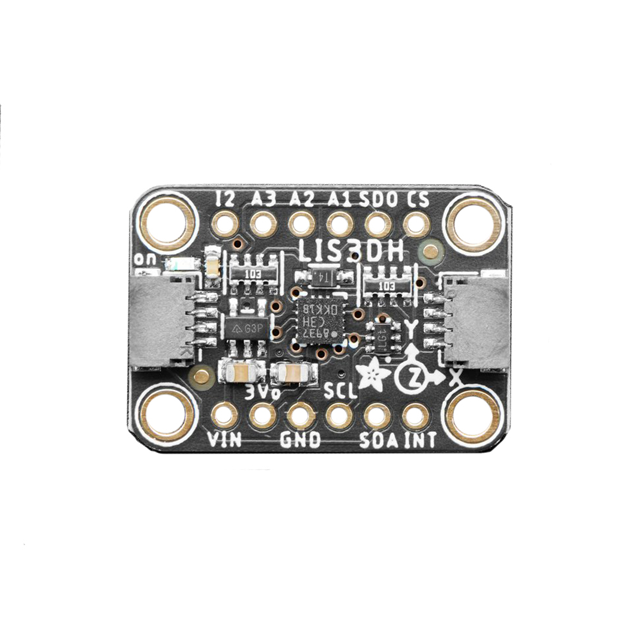
With a LIS3DH accelerometer connected via STEMMA I2C, tilting the display left or right skips to the next image.
USE_ACCEL = True

TILT_TARGET_LEFT = -1.5
TILT_TARGET_RIGHT = -60
TILT_THRESHOLD_LEFT = 6
TILT_THRESHOLD_RIGHT = 30
TILT_HOLD_TIME = 0.5
USE_ACCEL — Set to False if no accelerometer is connected. The display will show a brief "No accelerometer" warning on startup and continue without tilt/shake features.
TILT_TARGET_LEFT / TILT_TARGET_RIGHT — The center angle (in degrees) for each tilt zone. These are calibrated for the accelerometer mounted on the back of a diamond-oriented PyPortal.
TILT_THRESHOLD_LEFT / TILT_THRESHOLD_RIGHT — How far from the target angle still counts as "tilted". Larger values make the zones easier to hit.
TILT_HOLD_TIME — Seconds you must hold the tilt before it triggers. Lower values are more responsive, higher values prevent accidental skips.
A quick shake gesture also skips to the next image.
SHAKE_THRESHOLD = 20.0
SHAKE_COUNT_NEEDED = 2
SHAKE_WINDOW = 0.5
SHAKE_THRESHOLD — Acceleration magnitude in m/s² that counts as a "spike". At rest the sensor reads ~9.8 (gravity). 20.0 requires a deliberate shake.
SHAKE_COUNT_NEEDED — How many spikes are needed within the time window. 2 means two quick jolts.
SHAKE_WINDOW — Time window in seconds to collect the spikes. Both shakes must happen within this period.
A short chirp plays whenever a tilt or shake triggers an image skip. The chirp sweeps upward in frequency, creating a pleasant "mew" sound.
BEEP_FREQ_START = 843
BEEP_FREQ_END = 1200
BEEP_DURATION = 0.2
BEEP_FREQ_START — Starting frequency in Hz. Lower values give a deeper start.
BEEP_FREQ_END — Ending frequency in Hz. Higher values make the chirp brighter. Swap start and end for a descending chirp.
BEEP_DURATION — Length of the chirp in seconds. 0.1 is a quick blip, 0.3 is a longer sweep.
The WAV file is generated automatically at startup and saved to the SD card as /sd/beep.wav.
The touchscreen uses a pressure threshold to filter out false triggers caused by SPI bus noise during network activity.
TAP_PRESSURE = 40000
TAP_WINDOW = 2.0
TAP_PRESSURE — Minimum pressure reading for a real tap. Increase if you get phantom taps, decrease if the screen feels unresponsive.
TAP_WINDOW — Seconds to wait for additional taps after the first. This is how multi-tap detection works — tapping once within this window switches one mode, tapping twice skips two, and so on. The window resets after each tap, so you always have the full 2 seconds from your last tap.
When a new image appears, it slides over the old one from the top-left corner with an ease-in curve that accelerates like paint dripping.
WIPE_STEPS = 8
WIPE_DELAY = 0.02
WIPE_X_BIAS = 1
WIPE_STEPS — Number of animation frames. More steps = smoother but slower.
WIPE_DELAY — Seconds between frames. 0.02 is fast and snappy, 0.05 is more leisurely.
WIPE_X_BIAS — Controls the slide angle. 0.0 slides straight down (vertical wipe). 1.0 slides diagonally at 45°. 0.3 gives a mostly vertical drip with a slight diagonal lean.
3MF files for 3D printing are oriented and ready to print on FDM machines using PLA filament. Original design source files may be downloaded using the links below.
3MF files for 3D printing are oriented and ready to print on FDM machines using PLA filament. Original design source files may be downloaded using the links below.
The dropdown on the Fusion 360 site allows you to pick your preferred 3D file format like STEP, STL, etc.
Edit PyPortal Art Display Design
The parts were sliced using BambuStudio using the slice settings below.
PLA filament 220c extruder
0.2-layer height
10% gyroid infill
200mm/s print speed
Trees Supports
60c heated bed
The project assembly was designed in Fusion 360. Once opened in Fusion 360, It can be exported in different formats like STEP, STL and more.
Electronic components like Adafruit's boards, displays, connectors and more can be downloaded from the Adafruit CAD parts GitHub Repo.
Use M2.5x6mm screws to mount the sensor to the bracket, making sure to align with the text up right as shown on the picture.
Align the PyPortal screen between the standoffs. Place the SD card slot side close to the splash geometry on the printed frame.
The screw mounts closest to the splat geometry use M3x6mm screws.
Wait to add the LIS3DH bracket.
Plug the 4-pin JST PH to JST SH Cable into the center port. Carefully coil the cable around the port to manage the cable length.
Use M3x10mm screws to mount the sensor bracket.
Make sure the cable wires are not kinked when placing the bracket over the standoffs.
An optional right angle USB cable can be used to route the power to the PyPortal.
Use a Right Angle Micro B Plug Down, ribbon cable and a micro B socket.
Lastly insert an SD card into the slot after copying images to the imgs folder.
Once the PyPortal boots up, it connects to WiFi and begins displaying images from the default feed. Here's how all the interactions and behind-the-scenes features work.
When the display boots, it briefly shows status messages if anything is missing:
If no accelerometer is detected, "No accelerometer" appears for two seconds. The display continues to work — you just won't have tilt or shake features.
If WiFi credentials or Adafruit IO keys are missing from settings.toml, the display shows which keys are needed and automatically switches to local-only mode. It will cycle through BMP images on the SD card without attempting any network connections.
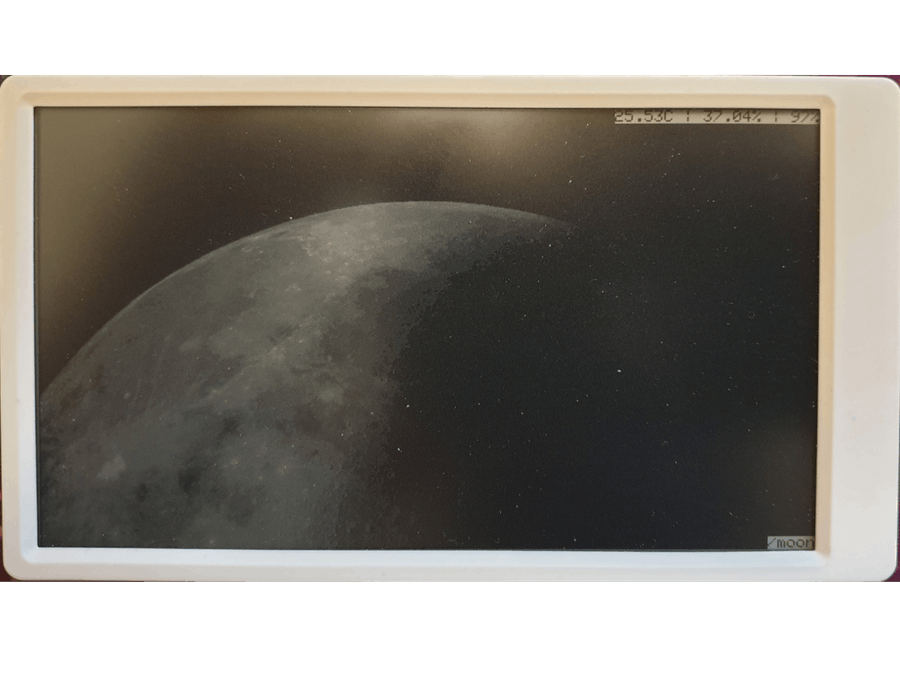
Tap the touchscreen to cycle to the next image feed. The available feeds are Cleveland Museum of Art, NASA Astronomy Picture of the Day, cats, dogs, and local SD card images. The feeds rotate in the order they appear in the code, looping back to the first after the last.
Double-tapping skips ahead by two feeds instead of one. After detecting a tap, the screen waits 2 seconds to see if any additional taps come in before switching, giving you plenty of time to tap your way to the exact feed you want.
The current feed name briefly appears at the bottom of the screen after switching.
There are three ways to skip to the next image without waiting for the timer:
Tilt — With the LIS3DH accelerometer connected, tilt the frame left or right and hold it for half a second. The display shows a countdown while you hold the tilt. If you release before the countdown completes, it cancels. A chirp plays when the skip triggers.
Shake — Give the frame a quick shake. The accelerometer looks for two acceleration spikes within half a second. A single bump won't trigger it — you need two distinct jolts, like a quick back-and-forth shake. A chirp confirms the skip.
Button — If a momentary button is wired to the D3 pin, pressing it instantly skips to the next image.
When a new image appears, it doesn't just pop onto the screen. The new image slides in diagonally from the top-left corner, covering the old image as it moves into place. The animation uses an ease-in curve that starts slow and accelerates, like paint dripping down a wall. Both the old and new images are visible throughout the transition — there's no black flash in between.
Every tilt or shake skip plays a short audio chirp that sweeps from 843 Hz up to 1200 Hz over 0.2 seconds. The WAV file is generated fresh each time the PyPortal boots, so any changes to the frequency or duration in the code take effect on the next restart.
While you're viewing the current image, the display is already downloading the next one in the background. This means when the timer expires or you skip, the next image appears almost instantly with no loading delay.
If the prefetch download fails — due to a network hiccup or low memory — it automatically retries once after a five-second pause. If both attempts fail, the display falls back to fetching the image on demand when it's time to show it.
Each image stays on screen for 60 seconds by default (configurable per feed). When the timer runs out, the prefetched image slides in and the cycle continues. The display runs unattended indefinitely.
The display is designed to keep running without intervention:
If a network request fails or an image can't be processed, the display tries a local SD card image as a fallback. After 10 consecutive errors, it automatically restarts. If the device runs out of memory three times in a row, it restarts to clear fragmented RAM.
WiFi connection drops and ESP32 communication errors trigger an automatic reset of the network hardware, followed by a retry.
Each feed talks to a different API to get image URLs, but they all follow the same pipeline: fetch JSON metadata, extract the image URL, convert it to a PyPortal-friendly BMP, and display it. Here's how each one works.
Every online image goes through the same conversion step before it reaches the screen. The PyPortal can only display 16-bit BMP files at its native resolution, so raw JPEGs and PNGs from the internet won't work directly.
The Adafruit IO Image Formatter service handles the conversion. The code sends the original image URL to this service, which resizes it to 320x240 and converts it to 16-bit BMP format. The converted image is downloaded directly to the SD card as a cache file, ready for the display to show.
This is why the ADAFRUIT_AIO_USERNAME and ADAFRUIT_AIO_KEY entries in settings.toml are required for all online feeds — they authenticate with the conversion service, not with the image APIs themselves.
CMA_API_URL = (
    "https://openaccess-api.clevelandart.org"
    "/api/artworks/"
)
CMA_IMAGE_COUNT = 37000
The CMA feed is the default and most reliable source. It uses the museum's open access API, which has over 37,000 CC0-licensed artworks with guaranteed images.
The code picks a random offset between 0 and 37,000, then requests a single artwork with the has_image=1 and cc0 parameters. This guarantees every result has an image and is in the public domain. The fields=title,images parameter trims the JSON response down to just what's needed, which is important for the PyPortal's limited RAM.
No API key is required. The image URL comes from the nested images.web.url field in the response.
CMA_IMAGE_COUNT — Total number of CC0 artworks with images. If the museum adds more, increase this to include them in the random selection.
NASA_API_KEY = getenv("NASA_API_KEY") or "DEMO_KEY"
NASA_API_URL = (
    "https://api.nasa.gov/planetary/apod"
)
NASA_START_YEAR = 1995
NASA_END_YEAR = 2025
The NASA feed picks a random date between June 16, 1995 (the first APOD) and the end of 2025, then requests that day's Astronomy Picture of the Day. The code clamps dates before June 16, 1995 to that date since no earlier entries exist.
The DEMO_KEY works out of the box but is rate-limited to 30 requests per hour. For heavier use, get a free API key from api.nasa.gov and add it to settings.toml as NASA_API_KEY.
Since some APOD entries are videos instead of images, the code checks the media_type field and skips any non-image entries.
NASA_START_YEAR / NASA_END_YEAR — Narrow the date range to a specific era. For example, setting both to 2024 shows only that year's images.
CAT_API_URL = (
    "https://api.thecatapi.com/v1/images/search"
)
The simplest feed. Each request returns a random cat photo — no parameters, no API key, no pagination. The image URL comes from the url field in the response. The title is set to "Cat #" followed by the image ID since there are no descriptive titles.
DOG_API_URL = (
    "https://dog.ceo/api/breeds/image/random"
)
Similar to the Cat API but returns a random dog photo from the Dog CEO collection. The image URL comes from the message field. The code extracts the breed name from the image URL path (which follows the pattern /breeds/breed-name/image.jpg) and formats it as the display title.
To add a new image API, you'd need to:
Add a name to FEED_MODES and a display time constant
Add a URL builder in build_feed_url() that returns the API endpoint
Add an image URL extractor in validate_image() that pulls the image URL from the JSON response
Add a title extractor in get_title() that returns a display name
The rest of the pipeline — image conversion, caching, transitions, and input handling — works automatically for any feed.